
Overview
MSEQ: make livesets fun again
The MSEQ is a powerful multiplayer sequencer, and it has an array of sequencing capabilities: eleven polyphonic synth sequencers, 16 voices of drum sequencing, all with duty, velocity and CC control. There is macro-level sequencing of chord progressions, pattern and session saving, and performance features like cueing drops and an isomorphic jam keyboard that lets you play notes over a set pattern by hand. It forms the heart of our improvised livesets, and is the workhorse of our studio. It’s open source, and it runs on a Raspberry Pi.
Multiplayer
We (malleable) built the MSEQ to capture the joy of an improvised jam session when performing live. It’s multiplayer so that we can both control the inevitable battery of gear that we put on the table when we turn up to a gig, and so that we can both see what the other is doing and react accordingly.
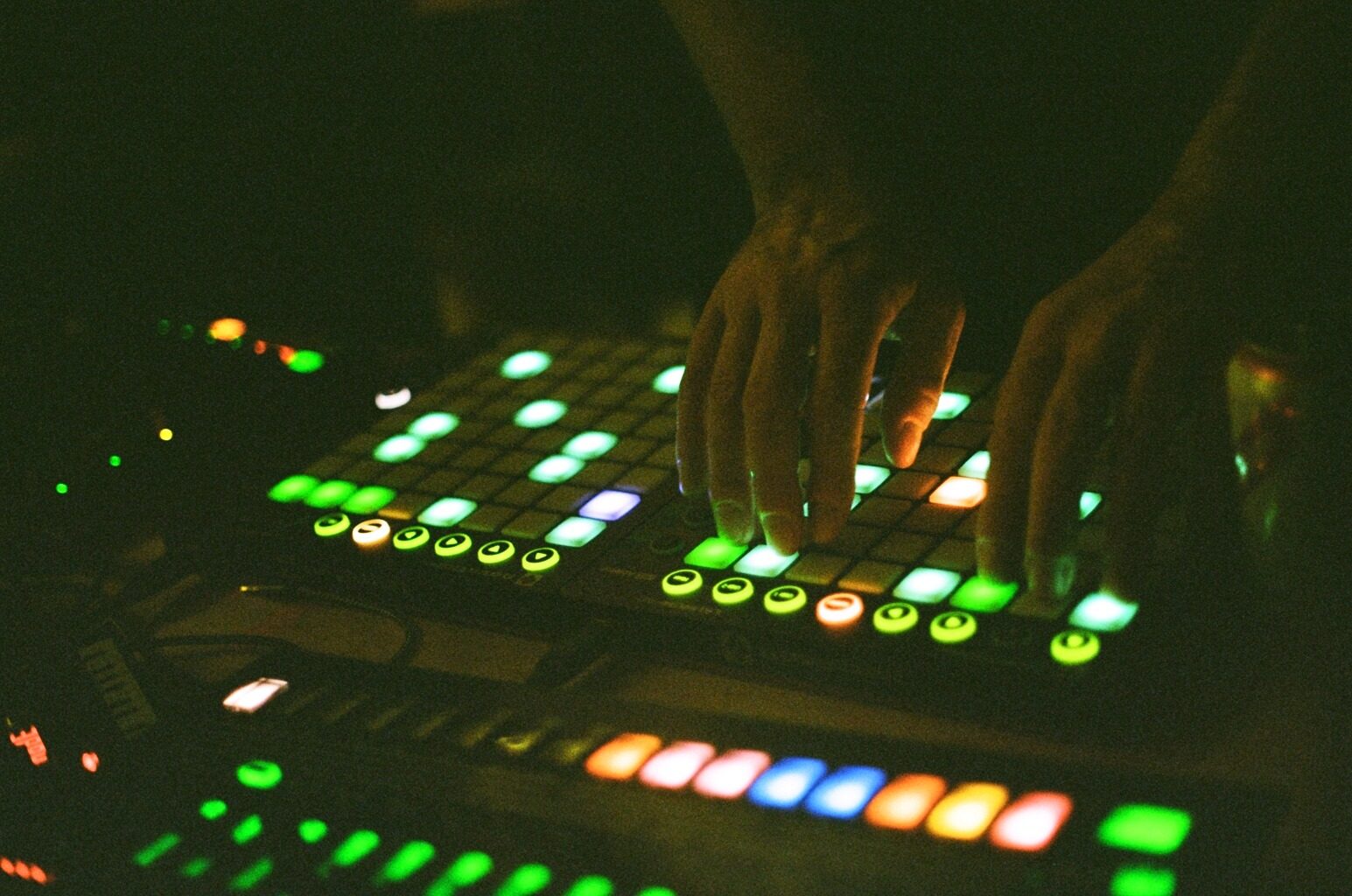
This works because there is a separate set of controls that each player uses to interact with the shared sequencer engine. Each of us has our own pair of Launchpads forming an 8x16 grid and our own LaunchControl for parameter control. Each player can view different aspects of the sequencer independently from the other. You can be deep in the chord progression while the other player rewrites a drum pattern, or you can both work on the same sequencer at once, one editing trigs while the other edits velocities.
This collaborative aspect is, we think, unique to the MSEQ, and it forms a big part of its ethos. However, if you haven’t got the hardware, or any friends, then you can run it with the hardware for one player, or even completely hardware free (bar the Raspberry Pi and some MIDI cables), because the control surface is replicated in a web app, so you can control the sequencer from a browser on the same WiFi.
Sequencers, rows and steps
The MSEQ is built on 8-row × 16-step sequencers. On a synth sequencer each of the eight rows is a note, lowest at the bottom, highest at the top (following configurable scales), so the sequencer is an eight-note polyphonic sequencer driving one synthesiser. On a drum sequencer each row is a drum voice.
Outside of the 8x16 grid the Launchpads create, there are 16 sequencers across the horizontal row at the top. For the most part each of these is a separate sequencer pointed at a separate MIDI channel. Sequencers 1–7 and 9–12 are polyphonic sequencers, and sequencer 13 is a drum sequencer with the capability to sequence 2 banks of 8 drum voices. Sequencers 8 and 16 are collections of globally applied options, modulation and other features like saving and loading patterns (patches) or sessions (collections of patches).
The MSEQ boots into sequencer 1, but pressing one of these buttons moves you into the trig view for the given sequencer, showing you the trigs that have been entered for that sequencer. You can edit trigs easily: pressing a grid pad will add a trig, and pressing again will remove the trig. Each sequencer corresponds to a MIDI channel, which is how we drive a small orchestra of synthesisers and drum machines all at once.
The controllers
Each player has two Launchpad MK2s and one LaunchControl XL. Throughout these pages, “the relevant Launchpad” or “the relevant LaunchControl” means the device paired to the thing being described (see Setup for the physical wiring).
Across the top of both Launchpads: the sixteen sequencer-select buttons. They light up to show the selected sequencer, the step position, and the overall bar count, with a colour scheme per sequencer, to help with quick identification of which sequencers are selected. See Selecting sequencers and views.
Down the right-hand side of the left Launchpad: the row mute controls, which are lit to illustrate the status of each row. Statuses include muted (off), unmuted (orange), legato (blue) and drone (green), plus cued between those statuses (flashing grey or off and the relevant status colour, depending on whether you are cued in or cued out). See Mutes and row states.
Down the right-hand side of the right Launchpad: the view-select buttons. These take you out of the trig view and into different views that allow for sequencing or modulating duty, velocity, or per-row octaves, or arpeggiating notes. Every view has its own page in this manual:
- Step Duty: how long the note on each step lasts (Step values)
- Step Velocity: how hard each step hits (Step values)
- Row Octave (Octave Tree): shift a row up or down an octave, or sequence the shift (Octave tree)
- Chord Progression Modulator: a per-bar transposition pattern laid over the chord progression (Voicing and modulation)
- Jam Keyboard: play notes by hand over the running pattern (Jam keyboard)
- Duty Arp: a per-row duty sequence, advanced on every new trig (Velocity and duty arps)
- Velocity Arp: a per-row velocity sequence, advanced on every new trig (Velocity and duty arps)
- Note Arp: a per-row note sequence, advanced on every new trig (Note arp)
- CC Arp: sequencing your synths’ knobs (CC arps)
- Chord Options (Root / Scale / CP Toggle): root note, scale, and whether a sequencer follows the progression (Key and following)
- Chord Progression: the sixteen-bar chord progression itself (Chord progression)
- Chord Edit (Voicing Mask): which notes of the scale each sequencer takes from the chord (Voicing and modulation)
- Clock Division: how fast each sequencer runs (Clock and timing)
- Swing: how far each sequencer’s off-beats lean (Clock and timing)
- Drum Cycler: which drum destinations the TR-8’s UP and DOWN buttons walk through (Drum views)
- Sleep: dim the Launchpads between sets, with the music still running (Clock and timing)
- TR-8 Accent: per-step accent on the drum sequencer (Step values)
- TR-8 Velocity Arp: per-voice velocity sequences for the drums (Velocity and duty arps)
- CC Slew: how quickly a CC slides to its new value (Slew and CC smoothing)
- Chord Clock Division: how fast each sequencer walks the progression (Key and following)
- Mod-Wheel Toggle: which sequencers follow the shared mod-wheel knob (Toggle views)
- Autodrop: cue sequencers and rows in and out (Autodrops)
- Local session IO: the slot catalog: saving, loading and undo (Saving and loading sessions)
- Peer session IO: browse and load another rig’s published sessions (Saving and loading sessions)
The LaunchControl XL carries the macro controls: duty, velocity and percentage chance on the three knob rows, volume on the faders, and per-sequencer muting, autodrops and octave control on the buttons below. The right-hand column of buttons act as modifiers, and most Launchpad gestures change meaning depending on which of them you are holding down. See LaunchControl modifier buttons for the modifiers, LaunchControl knobs and faders for the knobs and faders, and LaunchControl bottom row for what the bottom button row does when a modifier is held.
The webapp
Every MSEQ also serves a browser control surface to any phone, tablet or laptop on the same WiFi. Open it, pick which player you are, and you get that player’s Launchpad grid and LaunchControl XL mirrored live, so the pads light as they light on the hardware, and pressing them does what pressing the hardware does.
It isn’t just a mirror though. A screen can show you things that 64 pads can’t, so this is where we put the deeper control:
- assignable CCs per sequencer
- adjustable modulation curves
- a fuller and more self-explanatory session saving and loading page
- context-specific help, functioning like a cheat sheet for the UI of the view you are in
It’s also where you get more detail in some of the views: note names on the grid, readable knob values and chord names.
Use it as a second pair of eyes while you play on the hardware, or in place of the Launchpads and LaunchControl altogether (the Pi still does the sequencing, and still needs its MIDI interface). webapp.md walks you from opening the page to playing a pattern, and webapp-sessions.md covers saving and loading from it.
Saving and sharing sessions
Everything you build (patterns, arps, chord progressions, octave trees, mutes, swing, clock divisions) lives in a session that you can save and reload from the Launchpad itself, without stopping the music. What belongs to the box rather than to the song (your CC assignments and your arp curves) stays put through every load, so a borrowed session arrives set up for your rack.
The session view gives you a catalog of slots to save into and load from, with undo, and it works per sequencer, so you can pull a single sequencer’s pattern out of an old session into what you’re playing now rather than reloading the lot. Loads can be cued to land on a bar boundary, so a session change arrives in time with everything else.
Rigs can share, too. Sessions sync to cloud storage, and the peer view lets you browse another MSEQ’s published sessions and load their material straight into yours. It’s read-only, so you can borrow a bassline without touching their catalog.
About the figures in this manual
The Launchpad grid figures throughout these pages are shown both as a capture of the webapp and as a photo of the hardware. Use the webapp / hardware control above a figure to switch to a photograph of the same state on the two Launchpads.
You will notice the webapp dispenses with the view-selection controls on the far right column: view selection is combined with sequencer selection along the top row, so you can select exactly which sequencer and view to show with a single menu. It also moves the row mute status column from the right-hand side of the left Launchpad to the right-hand side of a combined 8x16 grid. Hence you can read the webapp half as one player’s pair of Launchpads laid side by side: the left half is the LHS LP, the right half is the RHS LP, and the eight circles down the right-hand edge are the row mute controls.
Where to go next
Getting started
- Setup: hardware setup and installation
- Ableton setup: DAW integration, clock, LC templates
The core surfaces
- Selecting sequencers and views: choosing a sequencer and a view
- Trigs: the trig view, for writing patterns and conditional and sustained trigs
- Mutes and row states: sequencer mutes and row play modes
- Step values: per-step duty, velocity and TR-8 accent
- Octave tree: per-row octave shifting and octave sequencing
- Reset and randomise: what reset and randomise do in every view
Movement and modulation
- Note arp: the note arps
- Velocity and duty arps: velocity and duty arps
- CC arps: sequencing CC messages
- Euclidean trigs: Euclidean rhythm overlays
- Slew and CC smoothing: smoothing CC movement
- Arp curves: what velocity arp and step duty values mean, per sequencer
Macro control
- Chord progression: the chord progression and its inversions
- Key and following: key, scale, and which sequencers follow the progression
- Clock and timing: clock division, swing, SLEEP, transport
- Toggle views: the toggle views
- Autodrops: dropping sequencers and rows in and out
- Jam keyboard: playing notes with your fingers
- Drum views: TR-8 and the drum sequencers
- Boom-tsk: the one-button return to a steady pulse
Sessions
- Saving and loading sessions: the slot catalog, for saving, loading, undo and peers
- Google Drive session sync: setting up session sync between rigs