
Saving and loading in the browser
The browser’s Sessions page works with the same catalog as the IO view on the Launchpads, the 98 slots on the Pi, but shows each slot’s name, date and contents, lets you search them, and asks you to confirm before anything is overwritten. What a session holds, and what it leaves out, is described in Saving and loading sessions. This page covers the browser’s side of it.
Open it with the disk icon at the top right of the grid, or from Settings, then Save / load sessions.
What you see
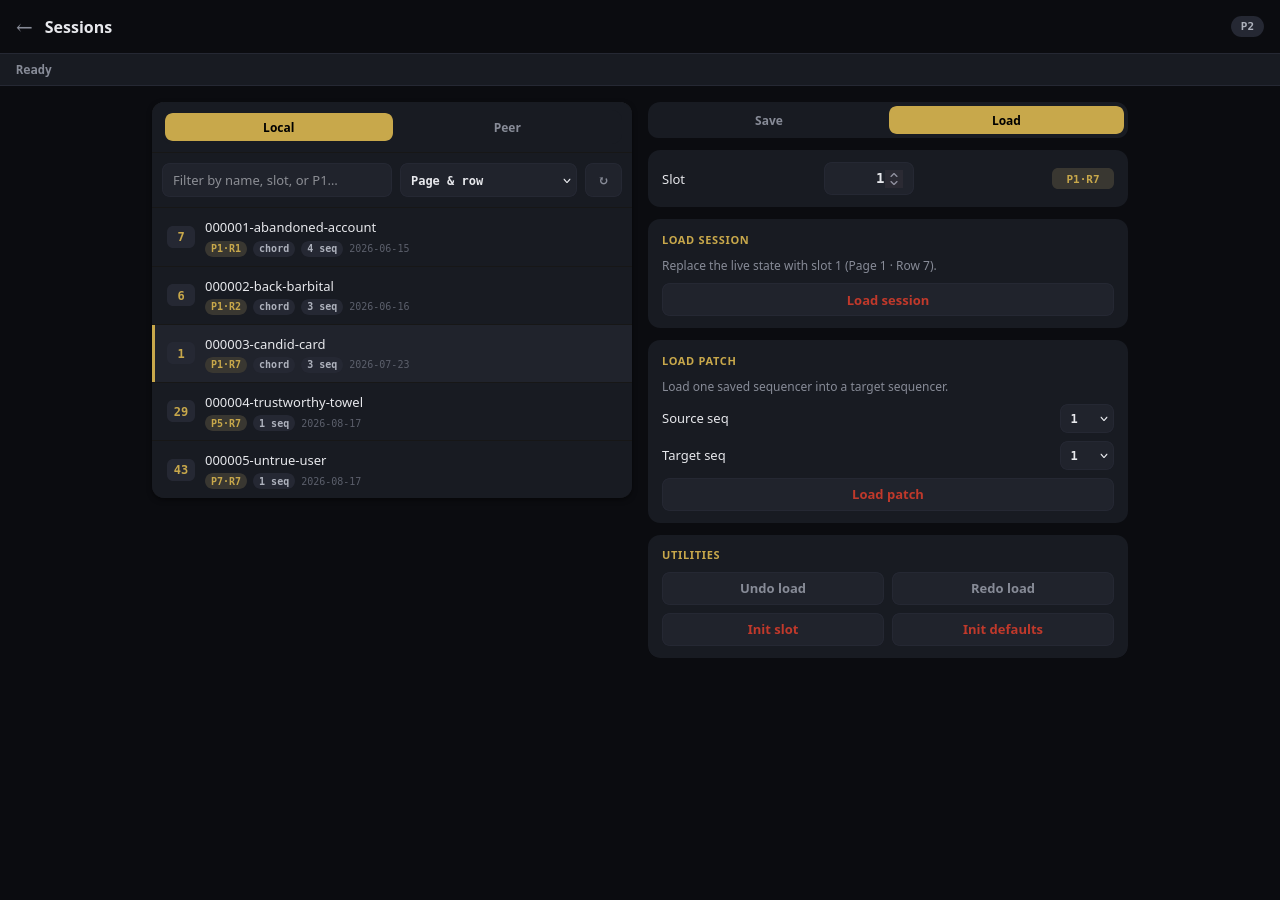
The local catalog in load mode, with slot 1 selected. The P1·R7 chip beside the slot number is where that slot sits in the IO view.
- The status line under the header starts as Ready and afterwards
reports the last thing that happened: which action, whether it worked, and
which slot, for example
load_session: ok · slot 1. An action that failed says so here, with the reason in brackets. - The list on the left is the catalog. Local is your own; Peer is a synced copy of another MSEQ’s (see Peer sessions). Each entry shows its slot number, its name, where it sits in the IO view, a chord chip if it holds a chord progression, how many sequencers it holds, and the date it was last saved.
- The actions on the right act on the slot in the Slot box, under Save and Load tabs.
Find a slot
Type in the filter box to narrow the list by name or slot number. Type a page,
such as P3, to see just that page. The sort menu puts the list in Page &
row order, which is the order you would read the IO view in, or Date
(newest first). The ↻ button fetches the list again.
Pressing an entry puts its slot number in the Slot box. You can also type any slot from 1 to 98 there directly, which is how you save into an empty slot that the list does not show.
The chip beside the Slot box, such as P1·R7, is the slot’s page and row in the IO view. It counts the rows of a page from the top, the way you read a list, so R1 is the top slot row of the page and R7 the bottom one. (On the Launchpads, and everywhere else in this manual, row 1 is the bottom row.)
Save
Press the Save tab.
- Save session writes everything into the slot.
- Save patch writes one sequencer into the slot. Choose which under Source seq. The list offers sequencers 1 to 7 and 9 to 13, the twelve a session holds.
Saving into an empty slot happens at once. Saving into a slot that already holds something asks first: the button reads Overwrite slot and needs confirming (see Confirming).
Load
Press the Load tab.
- Load session replaces the live state with the slot.
- Load patch loads one saved sequencer into a live one: Source seq is the sequencer as it was saved, Target seq is where it lands. Source and target can differ, which is how you move a saved bassline onto another sequencer.
Both behave as the same loads do on the hardware. In particular, Load patch mutes the target sequencer before the new material lands and leaves it muted, so you bring it in when you are ready, and loading from a slot that holds nothing for the source sequencer resets the target to its defaults. Both are described in Saving and loading sessions.
The browser has no save or load for the chord progression on its own. Use the IO view on the Launchpads for that, or load a whole session.
Utilities
- Undo load puts back what the last load replaced. Redo load puts the load back again. There is one step of each, shared with the undo pad on the Launchpads, so an undo in either place undoes the same thing.
- Init slot empties the slot in the Slot box: the file becomes an empty session.
- Init defaults resets the live state to a new session’s defaults. It is undoable with Undo load.
Confirming
Every load, both inits, and a save onto a slot that already holds something take two presses. The first press changes the button’s label to Confirm?; press it again within four seconds to go ahead. If you wait, it goes back to its own label without doing anything. Pressing a different action, or switching tab, cancels it the same way.
A single press of a load therefore does nothing, which is easy to mistake for the load having happened. Watch the status line: a load that ran reports it there.
Peer sessions
The Peer tab shows the catalog of another MSEQ, copied to this one by cloud sync. It stays empty, with a note saying no peer mirror is on disk, until cloud sync is set up, and its load buttons are unavailable until then: see Google Drive session sync. With more than one peer, a menu above the list picks which one you are looking at.
Peer sessions are read-only. The Save tab is unavailable, the inits are not offered, and the three actions all load into your live state without touching the peer’s files:
- Load peer session (remix) replaces the live state with the peer’s slot.
- Load peer patch loads one sequencer from the peer’s slot into a live one, with the same Source seq and Target seq as a local load.
- Load peer chords loads only the peer’s chord progression.
Each takes two presses, like a local load, and Undo load works on them in the same way.
A whole-session load from a peer puts a Remix banner across the top of the page, naming the peer and slot it came from. It is there to remind you that the next Save session records where the material came from. Press ✕ on the banner to dismiss it. Loading one sequencer or the chords from a peer does not count as a remix and shows no banner.
To make a peer’s material your own, load it, then save it into a local slot.
Cross-references
- Saving and loading sessions: what a session holds, and the IO view on the Launchpads
- webapp.md: the rest of the browser surface
- Google Drive session sync: setting up the sync that fills the Peer tab