Note arps
Note arps store an 8-step pitch pattern per row of a sequencer’s arpeggiator. Each row’s pattern plays back at its own length (1–8) and its own position, looped against the live major / minor scale tables. The note-arp view is where you edit those pitches: select a row and step on the overview pad, then press a key on the other pad to write a pitch into that slot.
What this view is really for
We call this view arps, but it isn’t really. It’s more a stepped modulation sequencer for pitch: each row holds a list of notes, and every time that row’s trigger fires it plays the next note in the list. Nothing here advances on the clock, it advances on triggers, and that is where all of the flexibility comes from.
Even with octave trees, eight fixed notes can make a pattern feel a bit stale. Octave trees allow you to shift a row up or down by hand, whereas note arps shift it automatically, to any note within a four octave range.
By default the list for each row holds one note, chosen such that the eight rows form a scale. This view allows you to extend that list to include up to 8 notes in any order, including rests.
Put a trig on every step and you get an arpeggiation effect, which is where the name came from. But the more interesting uses are the sparse ones, because the length of the list and the length of the pattern are independent of one another. A pattern with four trigs playing the same note can be turned into something that is constantly evolving by giving that row a three step arp, as three notes against four trigs takes twelve trigs, or three bars, to come back round to where it started. Pick lengths that don’t divide into each other and a two bar loop can take the best part of a minute to repeat itself.
Two further consequences are worth holding on to:
- The list only advances when a trigger actually fires a note. So if you combine arps with conditional trigs (mod chance, where the note is triggered every X out of Y times, or percentage chance, where the trigger fires at random), then the pitch sequence advances irregularly too, and those same eight notes stop being predictable. Rests inside the arp do the same job from the other direction, where the trigger fires but nothing sounds.
- Arps stack with everything else. Set a row to play legato (see Mutes and row states) and a two trig pattern against a three note arp becomes a sustained line that never repeats within the bar. Add other notes on the same step and you have a chord that changes each time round.
Try this first
Start with a row that already has trigs on it, so you can hear the arp move.
- Open the note-arp view and press the bottom-left pad of the LHS overview. That selects row 1, step 1.
- Hold SHIFT and press column 3 on that same row. The row’s arp is now three steps long, and three lit pads say so.
- Press step 2 on the overview to select it, then press a key on the RHS keyboard. That pitch is written into step 2.
- Do the same for step 3.
The row now walks three pitches, advancing one place every time its trig fires. Give the row four trigs and it takes three bars to come back round.
To move faster, hold MUTE and press a pad on the overview instead: that writes a ready-made figure to all eight rows at once. Set your lengths first, because a figure does not set them.
What you see on the Launchpads
LHS (LP1 for P1, LP3 for P2): pattern overview
An 8×8 grid showing every row of the arpeggiator at once.
- Each row of the pad is one arp row, numbered 1 at the bottom up to 8 at the top, the same way round as the velo and duty arp views and the trig view (see the “What You See” section of Trigs).
- Each column represents a step in that row’s pattern (step 1–8, left to right).
- A step is lit if it’s within the row’s arp length; off if beyond the length.
- Lit steps show the per-step palette colour (eight different shades, one per step index).
- The currently-playing step shows the position colour (a high-contrast highlight) instead of the palette colour.
- Inactive steps (beyond the row’s arp length) are unlit.
RHS (LP2 for P1, LP4 for P2): keyboard editor
A piano-keyboard-style editor for the row currently selected by that player.
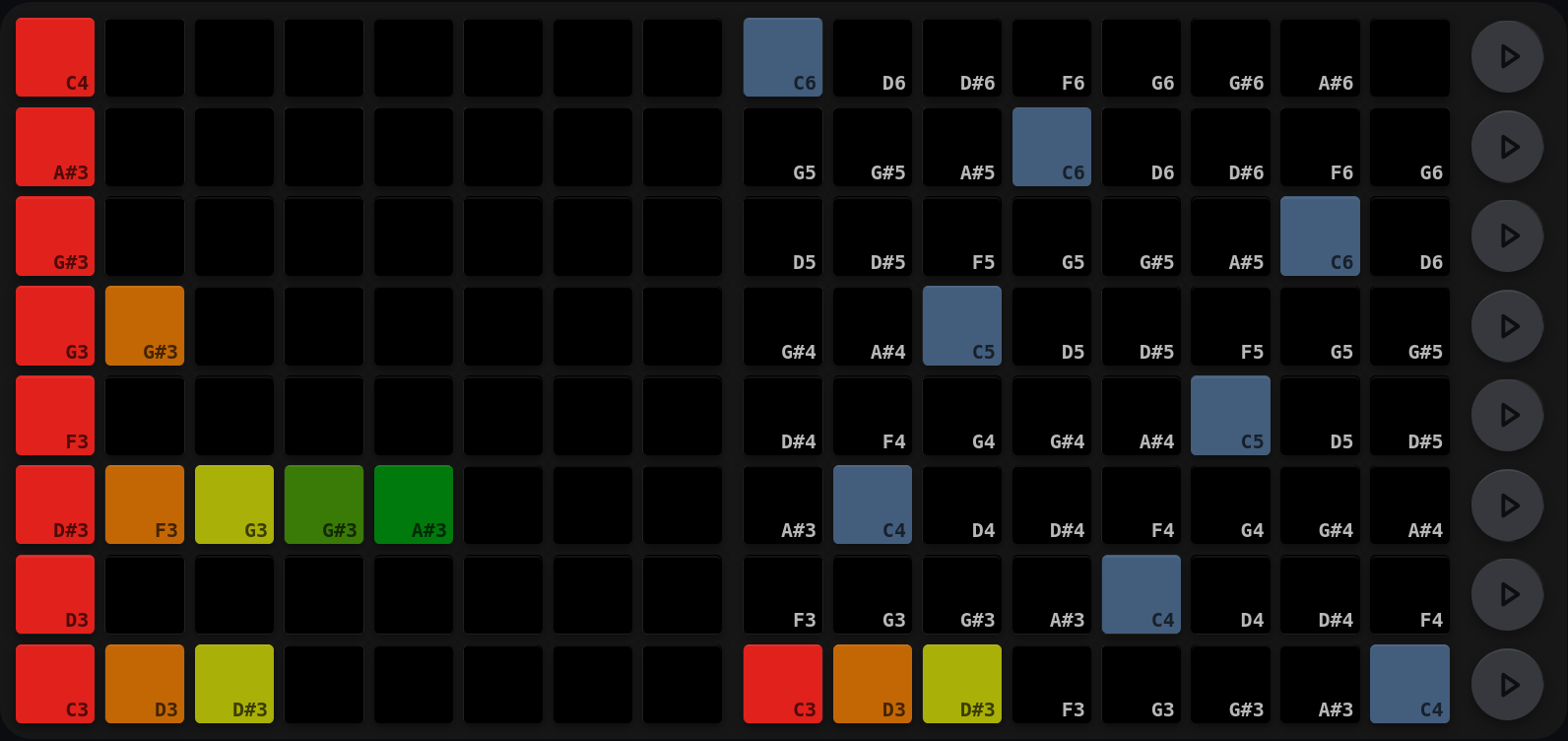
- Nine slate-grey scale overlay positions outline the C-major /
C-minor diatonic layout (the keys you’d play to set scale-degree
pitches):
11, 18, 25, 32, 46, 53, 67, 74, 81. Every one of them is a root note. They are the octave landmarks of the layout, drawn before anything else so the keyboard has a shape even on a row with nothing written to it. - Whichever cells of the selected row already have a pitch assigned are highlighted in the per-step palette colour at the LP grid position the user originally pressed.
- The currently-playing step (within the selected row) shows the position colour.
- Steps beyond the row’s arp length are not drawn.
- Cells that are neither overlay nor active are unlit.
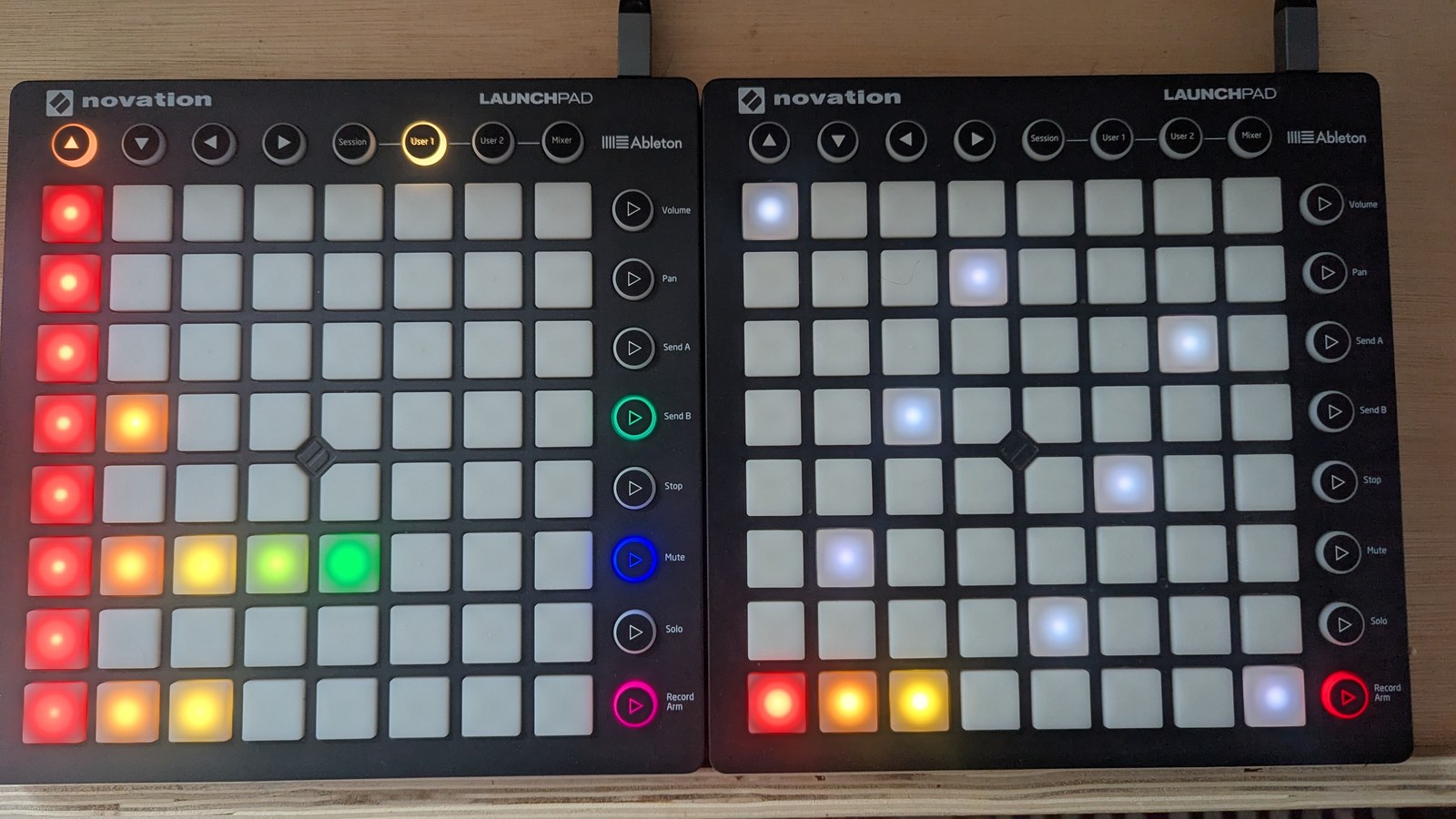
Three rows have been extended past their single default note, to lists of three, five and two. The LP LHS is the overview, with one colour per slot so you can count a length without reading a number. The LP RHS is the keyboard for the selected three-note row. Its three pitches overpaint one of the nine baseline slate landmarks, leaving eight visibly slate.
The gestures
Select a slot, then write a pitch
Editing is two presses, on the two pads.
1. Select a slot on the LHS overview. Column is the step (1–8), row is the arp row (1 at the bottom of the pad up to 8 at the top). Every press selects, whatever you are holding, so you never have to let go of a modifier to move focus. The LHS does not visibly change; the RHS redraws as the keyboard for the newly selected row.
2. Write a pitch on the RHS keyboard. You do not hold anything: the selection stays put until you move it. The key’s grid position resolves to a pitch in the current scale, with octave offsets built into the layout (4 octaves across the 8×8 grid). Position 88, the bottom-right pad, is the rest pad and clears that step to silence. Keys outside the 4-octave layout are ignored.
P1 and P2 each have their own selected row, selected step and cached key position, so both can edit different rows of the same sequencer at once without overwriting each other.
Set a row’s length
Each row has its own arp length, from 1 to 8 steps, set from the LHS overview:
- SHIFT + press sets that row’s length to the column you pressed.
- Double-tap the same cell with nothing held does the same thing.
Rows beyond the new length go dark immediately, and the engine wraps the playback cursor to the new length on its next step.
Write a preset figure
Holding MUTE and pressing the LHS overview writes one of 56 arpeggio figures to all eight rows of the sequencer, or resets the sequencer to init.
Row picks the mode; column picks the interval; column 1 is reset-to-init. 8 rows × 7 intervals = 56 preset pads, plus 8 reset pads (one per row, all in col 1).
col 1 col 2 col 3 col 4 col 5 col 6 col 7 col 8
row 8 UP seconds_ thirds_ fourths_ fifths_ sixths_ sevenths_ octaves_ ← LP top
row 7 DOUBLE_UP _up suffix on each interval
row 6 UP_PEDAL _up_pedal_tone suffix
row 5 DOUBLE_UP_PEDAL _double_up_pedal_tone
row 4 DOUB_DOWN_PEDAL _double_down_pedal_tone
row 3 DOWN_PEDAL _down_pedal_tone
row 2 DOUBLE_DOWN _double_down
row 1 DOWN _down suffix ← LP bottom
(reset to
init)
Intervals: seconds, thirds, fourths, fifths, sixths, sevenths and octaves. Modes: up, double up, up with a pedal tone, double up with a pedal tone, double down with a pedal tone, down with a pedal tone, double down, and down. Every combination is reachable from the 8×7 grid.
A press on cols 2–8 rewrites all eight rows of that sequencer, so it changes what you hear as well as what lights up. The pressed pad flashes lime-yellow for about a second to confirm, and the flash cancels if you switch sequencers part-way through.
Two things to know before you press one:
- A press does not set the row’s length. On a fresh row (length 0, which is one slot) it changes a single note and the row looks inert. Choose a length, then choose a figure.
- A press rewrites all eight cells of every row, which replaces any rests you had placed. Put the figure down first, then punch the holes in it.
Reset, and getting back
Col 1 of the preset grid resets the sequencer to init. It writes the canonical diatonic cascade to all 8 rows, zeroes every row’s length, and redraws the keyboard overlay to match.
This is the one destructive gesture on the view, and it clears every row’s length as well as its notes. Every other preset leaves your lengths alone. There is no undo here, so save the session first if you might want the old arps back.
SHIFT + MUTE and SHIFT + SOLO, which reset and randomise elsewhere, are not bound on this view at all (see Reset and randomise).
Scale mode
Switch the global scale between major and minor and every note arp moves with it. What you hear afterwards depends on how each note got there:
- Notes you played from the keyboard follow the new scale, keeping the shape of the phrase while changing its colour.
- Notes that do not exist in the new scale keep the pitch they had, so a deliberate outside note is not quietly corrected.
- Rests stay rests.
The keyboard overlay does not move: it shows scale degrees, so the lit pads stay where they are and only the sound changes. The change appears straight away, with nothing to re-press.
Where each note came from
MSEQ remembers how every step was authored, which is what lets the rule above work:
| Step | Behaviour on a scale change |
|---|---|
| Played from the keyboard, or from a preset or reset | Follows the new scale |
| A pitch that is not in the saved scale, recognised when a session loads | Keeps its pitch |
| A rest, set with the rest pad at the bottom right of the RHS | Stays a rest |
This survives saving and loading, so a session reopened months later still knows which notes were deliberate outsiders.
Diatonic mode
With the chord-adjustment selector on Diatonic (see Chords and scales), chord progressions and moving note arps both stay strictly in scale. Notes kept as deliberate outsiders are the exception: they plane chromatically as before.
Reference
What a figure is made of
A figure is generated on the press from five things: the interval (how far apart the notes are), the direction, whether each note is doubled, whether there is a pedal tone, and the row you are writing to. Nothing about a figure is stored anywhere, so the notes you hear, the pads that light and the degrees the session saves are all the same piece of data and cannot disagree.
- Anchor. Every row already sits on its own degree of the scale (row 1 at the bottom, row 8 a diatonic octave above it), and a figure is built around that note. An ascending figure starts on the row’s note and climbs. A descending figure lands on it, starting high enough up that the last step arrives home. That is why a descending preset sounds higher than you might expect: it has to begin above the row’s note in order to end on it.
- Pedal tone. A pedal figure alternates a held anchor note with
a line that opens out around it:
C4 D#4 C4 G4 C4 A#4 C4 D5rather than a plain climb. Ascending, the pedal is the row’s own note underneath a rising line. Descending, it is the top note, with the line falling away below it. - Length. Wide intervals run out of keyboard, so each figure is as long as it can be while every one of its steps still lands on a pad you can see and edit. Seconds and thirds keep all eight steps. Octaves up gets three, sevenths four, sixths five, fifths six and fourths seven. Doubling and pedal tones both spend steps without climbing, so those variants reach further: octaves double up gets six steps, and octaves double up with a pedal tone all eight.
- The tail. A row always holds eight cells. When a figure is shorter than that, the remaining cells repeat it from the start, so a three-step octaves-up figure on a full-length row plays its three notes, then those same three again, then the first two. Raising the row’s length later therefore gives you more of the figure rather than silence.
Pads and duplicates
Most degrees appear on two or three pads of the RHS keyboard. When the overlay is rebuilt, a cell keeps whichever pad it already holds as long as that pad still means the right degree, so a pad you chose by hand stays chosen. A cell that disagrees is re-lit on the candidate nearest its neighbour, which is what makes a generated figure read as a diagonal instead of a run along the bottom.
The overlay is display state and is not saved with the session, so after a load the pads come back in their canonical positions while the notes are exactly as you left them.
The length picker in detail
Every LHS press updates the selection first, whatever modifier is held, so focus never waits on your hands. The length write then fires on top of that in two cases: a SHIFT press, or an unmodified double-tap.
The double-tap arms a 350 ms window on the first press. A second press of the same cell inside that window commits the write, provided it is at least 40 ms after the first, which rejects switch bounce. Pressing a different cell during the window re-arms on the new cell instead.
Modifiers other than SHIFT behave like this:
- MUTE suppresses the length write and cancels any pending arm. The press goes to the preset gestures instead.
- REC ARM, SHIFT + MUTE and SHIFT + SOLO are not bound here, so they are treated as unmodified presses and feed the double-tap path.
- A SHIFT press arriving mid-arm fires immediately and cancels the pending arm.
When the editor redraws
The editor refreshes whenever the selected row or step changes, a pitch is written, the global scale changes, a preset or reset fires, or the engine advances the arp position, so the playing cursor tracks playback live.
Limitations
- At the top of the MIDI range, a note that would land above MIDI 127 comes back an octave (or more) lower, in the same pitch class, rather than flattening onto 127. So a figure that climbs out of range keeps its shape and its harmony, and only its register changes. A note below MIDI 1 does not sound at all. The asymmetry is deliberate: figures wrap at the top and mute at the bottom.
- Adjustment mode is stored per scale (major and minor separately), so switching the scale can also change the active adjustment mode, for example from diatonic to plain. Switching the scale back restores both. This is a UI surprise rather than data loss: the underlying degrees are scale-independent.
- At startup both players are on row 8, step 1, with the grid drawn from whatever the engine is holding. Nothing carries over from the previous run unless you load a session.
Cross-References
- Octave tree: the other way to move a row’s pitch
- Velocity and duty arps: the same edit model for velocity and duty
- Chords and scales: the scale and adjustment mode these arps follow
- Reset and randomise: why SHIFT + MUTE and SHIFT + SOLO do nothing here