
Saving and loading
A session is everything you have built: every pattern, every arp, the chord progression, the swing, the mutes. Saving writes it to a numbered slot on the Pi; loading brings it back. You can save and load the whole thing, or one sequencer at a time, or just the chord progression, which is what makes the catalog useful mid-set rather than only between sets.
There are 98 slots, laid out as 14 pages of 7. The IO view is where you work with them.
What is saved
Twelve sequencers are saved: 1–7 and 9–13. Sequencers 8 and 16 are the LaunchControl pages rather than voices, and 14 and 15 are not part of the session model, so none of the four appear in the view at all.
For each of those twelve, a session holds the whole sequencer: trigs and their statuses, notes, per-step velocity and duty, row octaves, row mutes, all four arp families (note, velocity, duty and CC) with their lengths, Euclidean trig settings, trig rotation, and the per-sequencer chord settings.
Alongside that it holds the state that belongs to the rig rather than to one sequencer: the chord progression and its inversions, root note and scale, the chord clock divisions and CP-follow toggles, swing (coarse and fine), clock divisions, CC slew times, mod-wheel toggles, autodrop eligibility, and sequencer mutes.
What is not saved
Three things a player will notice, all deliberate:
- The jam keyboard’s gate pattern. It is live-only state, so it does not come back with a session. Rebuild it after loading.
- Arp curves. These are a device setting, like the CC assignments: they live in their own config and a session load never touches them. Your curves survive every load, which is the point (see Arp curves for what a curve does).
- Anything the patch recomputes at boot. Derived caches and display-only arrays are rebuilt rather than stored.
What you see on the Launchpads
The IO view uses both LPs as one 8×16 surface, and the top row means something different from the seven rows below it.
| Where | What it is |
|---|---|
| Top row, LHS cols 1–7 | The live row: sequencers 1–7 as they are right now |
| Top row, RHS cols 1–5 | The live row continued: sequencers 9–13 |
| Top row, LHS col 8 | The undo pad |
| Top row, RHS col 8 | The live chord progression |
| Rows 1–7, cols 1–7 / 1–5 | One slot per row, showing which sequencers that slot holds |
| Rows 1–7, LHS col 8 | That slot’s whole-session pad |
| Rows 1–7, RHS col 8 | That slot’s chord progression |
| Column 9, rows 1–7 | Page indicator: one lit button, white on pages 1–7 and green on pages 8–14 |
| Column 9, top button | Cloud-sync status |
Rows count from the bottom, so the slot on row 1 is the lowest of the seven and
the live row is above all of them. The slot number is
(page − 1) × 7 + row, which is worth knowing when you are shouting a slot
number across a room.
The page indicator reads downwards: page 1 lights row 7, page 7 lights row 1, and then pages 8 to 14 repeat the same seven positions in green. So the lit button tells you where you are within a block of seven, and its colour tells you which block.
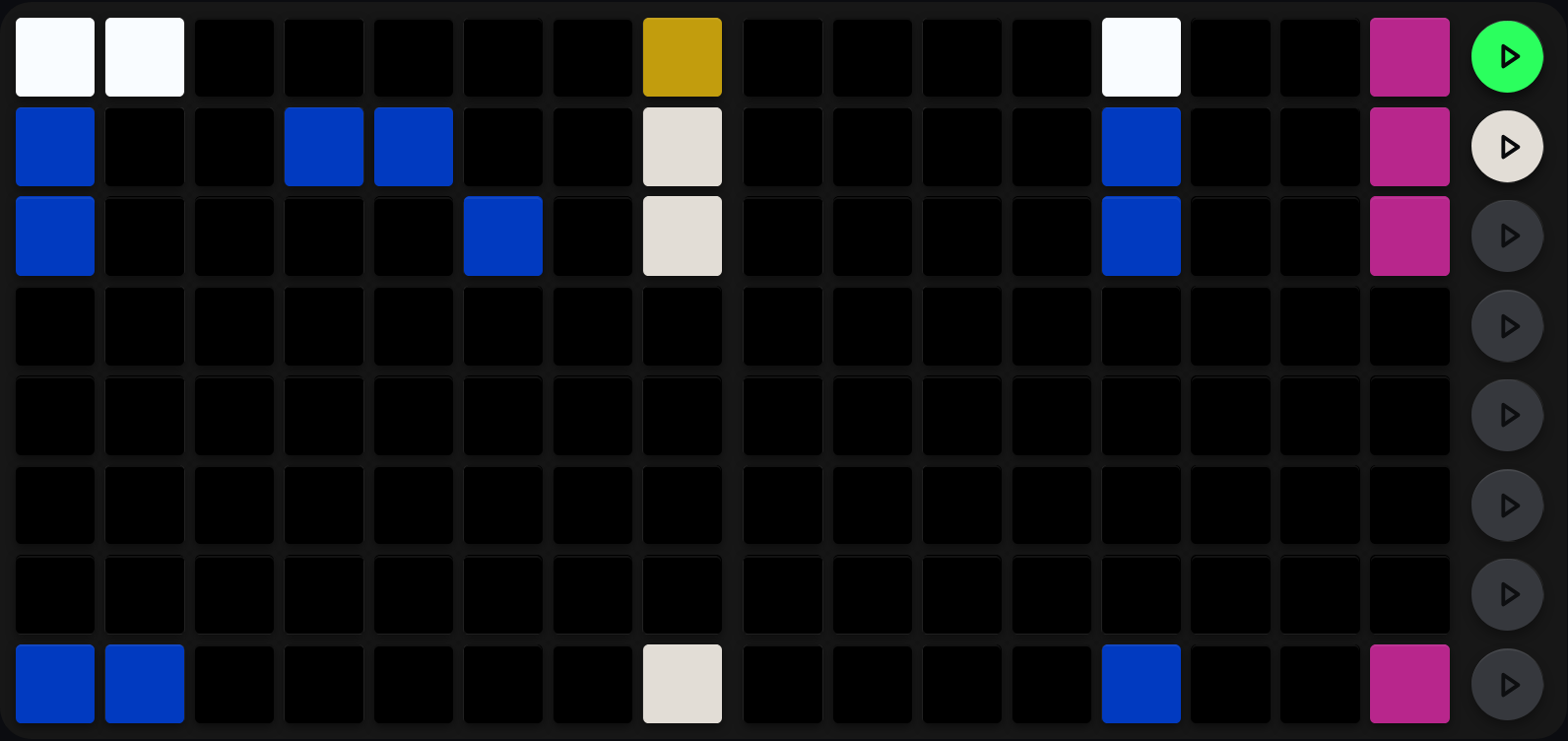
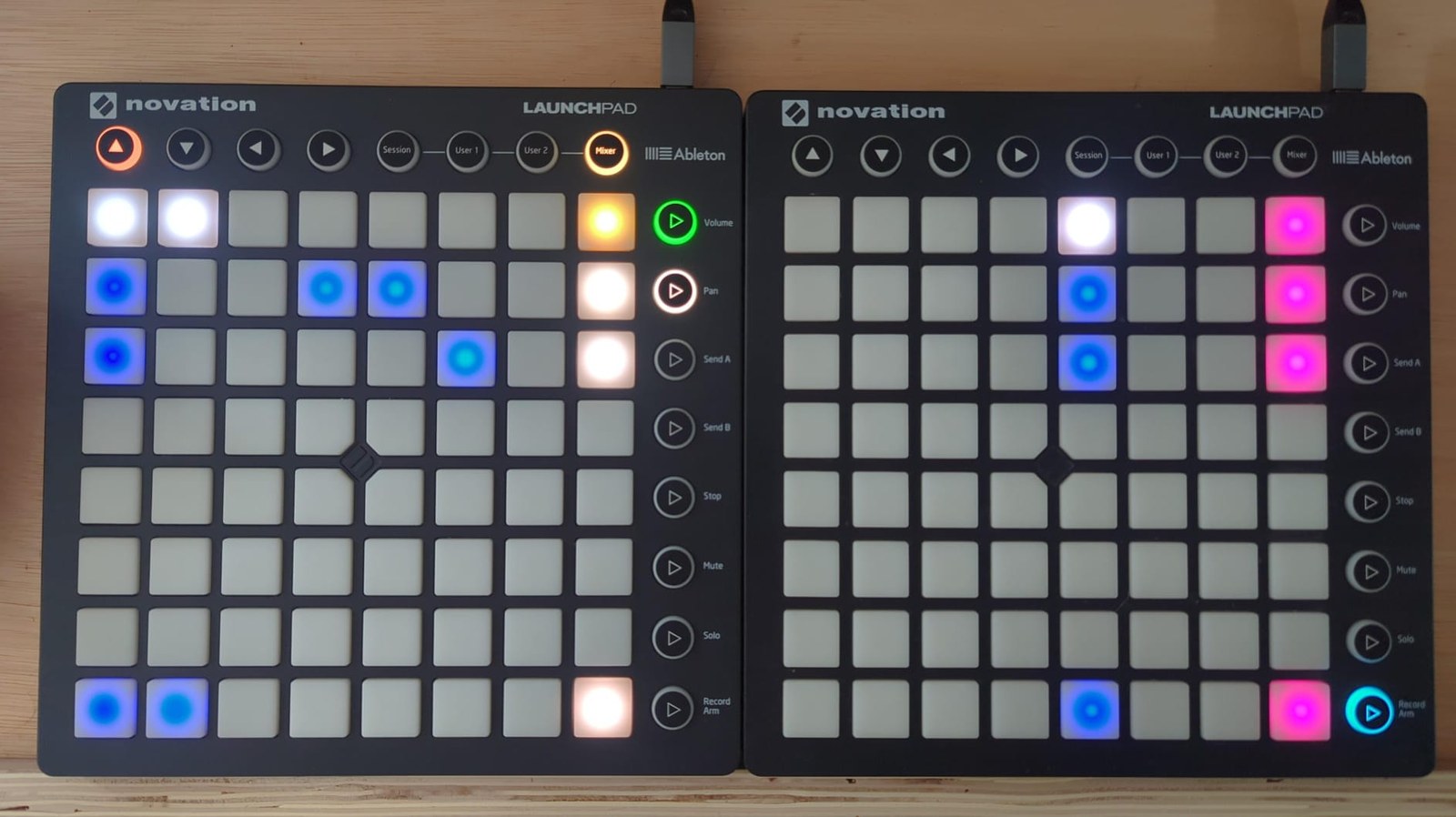
Three of the seven slots on this page hold something, and they do not all hold the same thing: the blue pads show which sequencers each slot saved. Each of the three also has a chord progression stored (magenta, far right) and a whole-session pad lit warm white in column 8, so any of them can be loaded whole or picked apart a sequencer at a time.
The top row is the live rig rather than a slot. The three bright white pads are the sequencers playing right now, and they are sequencers 1, 2 and 13, which is exactly what the bottom slot holds: this is the moment after that slot was loaded. The magenta pad at the far right of the top row is the progression currently live, and the mustard pad in column 8 means an undo is available, so the load you just did can be put straight back.
Colours
The Verified column says whether the colour has been checked against a capture of the rendered grid, or taken from the colour definitions without one, because most of these states are transient and no still image of them exists yet.
| Colour | Means | Verified |
|---|---|---|
| Bright white, live row | That sequencer is playing and unmuted | ✅ capture |
| Deep blue, slot row | The slot holds data for that sequencer | ✅ capture |
| Warm white, col 8 | The slot holds a session you can load | ✅ capture |
| Magenta, RHS col 8 | A chord progression is stored (or live, on the top row) | ✅ capture |
| Mustard, undo pad | Pressing it will undo the last load | ✅ capture |
| Bright green, undo pad | Pressing it will redo instead | ✅ capture |
| Dark bronze, undo pad | Nothing to undo or redo yet | from source |
| Blue, blinking between two shades | The pad you pressed first in a two-press gesture: this is the source you are about to load from | from source |
| Red blinking against dark bronze, live row | That live sequencer is the source of a save you are part-way through | from source |
| Pale blue, slot pad | The slot holds material pulled from a peer | from source |
| Slate grey, live row | Muted, but the sequencer still holds data | from source |
| Slate grey, any pad | Cue preview while REC ARM is held, or a pad that is actually cued (it blinks) | ✅ capture (preview) |
| Bright red, col 8 | Save armed: you are holding SHIFT | ✅ capture |
| Tan, col 8 | Initialise armed: you are holding SHIFT + MUTE | ✅ capture |
| Teal-green flash | A save or load just committed (three frames) | ✅ capture |
| Very bright pink, undo pad | A cue is pending in the other IO view | from source |
| Bright green, col 9 top | Cloud sync is idle | ✅ capture |
| Mustard, col 9 top | Cloud sync is working | from source |
| Bright red, col 9 top | Cloud sync has failed | from source |
Two of those colours are shared with other meanings at other positions, which is why position matters as much as hue: bright red is both “save armed” and the transient load-target flash, and slate grey is both the cue colour and the muted-with-data colour.
The blinking source pads are worth learning first, because they are the feedback you use most. Every two-press gesture here shows you the first press as a blink, so you can always see what you have picked up before you decide where to put it down. If nothing is blinking, nothing is selected, and the next press starts a fresh gesture rather than completing one.
The SHIFT and SHIFT + MUTE previews paint every slot pad, including empty ones, so you can see what the modifier would do before you commit. The REC ARM cue preview is choosier: it only lights the pads that actually have something to cue.
Gestures
Modifiers are held on the LaunchControl and read at the moment you press a pad. Where two could apply, the stronger one wins: SHIFT + MUTE, then SHIFT, then REC ARM, then MUTE, then no modifier.
The whole session
| Gesture | Effect |
|---|---|
| Press a slot’s col-8 pad | Load that whole session |
| SHIFT + a slot’s col-8 pad | Save everything into that slot |
| SHIFT + MUTE + a slot’s col-8 pad | Initialise the slot: the file becomes an empty session |
One sequencer at a time
| Gesture | Effect |
|---|---|
| Press a slot’s data pad, then a live-row pad | Load that saved sequencer into the live sequencer you pressed second |
| SHIFT + a live-row pad, then a slot pad | Save that live sequencer into the slot |
This is the gesture that earns the view its place in a set. You can pull one saved bassline into sequencer 3 without disturbing anything else you are playing.
Two things happen around that load which are easier to enjoy than to discover mid-set:
- Load mutes the target sequencer before the new material lands, and leaves it muted. You get to hear the rest of the rig carry on while you bring the new part in deliberately, rather than having it burst in halfway through a bar. Unmute it from the LC top row when you want it.
- Loading from a slot that holds nothing for that sequencer resets the target to its defaults. An empty slot and a blanked sequencer look the same on the grid, so they do the same thing: this is the quick way to wipe a sequencer back to scratch, and also the way to do it by accident.
The chord progression
| Gesture | Effect |
|---|---|
| Press a slot’s RHS col-8 pad, then the top-row RHS col-8 pad | Load that saved progression |
| SHIFT + the top-row RHS col-8 pad, then a slot’s RHS col-8 pad | Save the live progression into the slot |
Undo, and the page
| Gesture | Effect |
|---|---|
| Press the undo pad (top row, LHS col 8) | Undo the last load, or redo it if the pad is green |
| LC left / right arrows | Page down / page up through the 14 pages |
The arrows are the same two LaunchControl buttons that rotate a trig pattern everywhere else. The IO and peer views are the two exceptions where they page the catalog instead (see pattern-rotation.md).
There is one step of undo and one of redo, and they are mutually exclusive: after you undo, the pad offers redo, and after you load something new, it offers undo again. The pad’s colour always tells you which way the next press goes.
Cloud sync
| Gesture | Effect |
|---|---|
| Press the top col-9 button | Sync now |
| SHIFT + it | Turn background sync on or off |
| SHIFT + MUTE + it | Clear a stuck sync status and its backoff |
Setting sync up is a one-time job on the box, described in Google Drive session sync.
Landing a load on the bar
Loading mid-bar is usually not what you want. Hold REC ARM while making any load gesture and it becomes a cue: nothing happens until the next bar boundary, and then the whole thing lands at once. Arming a second cue replaces the first rather than queueing behind it.
While a cue is pending, the pads that would fire show the cue colour, so you can see what is about to happen. If you change your mind, arm something else.
One safeguard worth knowing: a cue needs a running transport to find the bar edge. If the transport stops while a cue is waiting, MSEQ gives it four seconds and then fires it immediately rather than leaving it stuck.
Loading from another machine
The peer IO view is the same layout pointed at a peer’s synced catalog. It is deliberately load-only: you can pull a whole session, a single sequencer or a chord progression out of it, with the same two-press gestures and the same REC ARM cueing, but there is no save, no initialise and no overwrite. SHIFT and SHIFT + MUTE do nothing there on purpose.
Occupied peer slots are drawn in their own tint so you cannot mistake the peer catalog for your own. It keeps its own page cursor, so browsing away in one view does not move the other, but the two share the pending cue and the undo history. That sharing is why a pink blinking undo pad means “a cue is waiting in the other view”: pressing it there dismisses that cue instead of undoing.
To make a peer’s material yours, load it and then save into a local slot. That is the whole remix workflow: pull, play, save.
Cross-references
- Google Drive session sync: setting up the sync that fills the peer catalog
- Reset and randomise: the reset and randomise gestures in other views
- Selecting sequencers and views: how to get to the IO view in the first place