
Settings and layout
The browser’s Settings page holds the choices that shape the surface itself: how it looks, where the LaunchControl sits, how presses behave, and which player you are. Open it with the cog at the top right of the grid, or the ⚙ button when the page is showing only the view reference. The ← at the top left takes you back.
Almost everything here belongs to this browser: it is remembered by the device you set it on and changes nothing for anyone else, so a phone and a laptop can be set up differently for the same player. The one exception is Webapp pad input, which affects every browser at once.
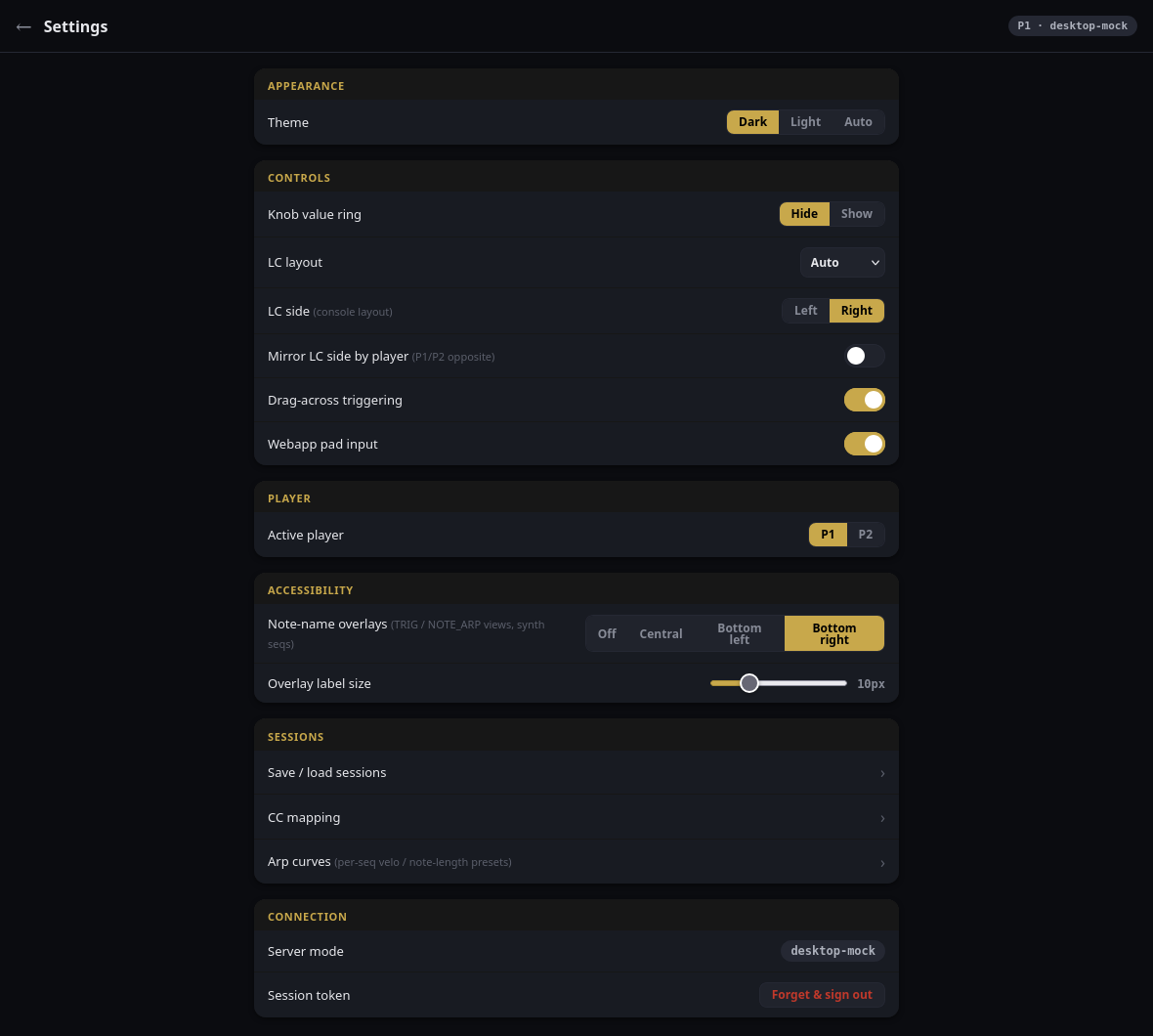
Every setting at its default, captured on a development machine, which is why Server mode reads desktop-mock rather than pi.
Appearance
Theme is Dark, Light or Auto. Auto follows the light or dark setting of the device you are on. The theme button at the bottom left of the grid cycles the same three.
Controls
Knob value ring shows or hides a coloured arc round each on-screen knob, filled to its current value, so you can read a knob’s position at a glance. It is hidden by default. Whichever you choose, the readout in the corner of the LaunchControl panel shows the exact value of the last control you moved.
LC layout is Auto, Drawer or Console, and decides whether the LaunchControl appears as the full console or as a drawer over the grid. What each choice gives on each screen size is in the table on webapp.md, along with the one thing the choice costs you: the colour key is unavailable while a drawer is showing.
LC side puts the console on the Left or Right of the grid. Right is the default.
Mirror LC side by player flips the side for player 2, so that the two players’ consoles sit on opposite sides. It exists for two players facing each other across a table: with it on, each of you has the console on your outer edge and the grid between you.
LC side and Mirror LC side by player only apply where the console sits beside the grid, which is a tablet or laptop with LC layout on Auto or Console. With the console below the grid on a phone, or with a drawer, they do nothing.
Drag-across triggering lets one continuous touch or mouse drag press every pad it crosses, which is the quick way to write a run of trigs or sweep a row of values. It is on by default. Turn it off if you find yourself writing trigs you did not mean to while scrolling or resting a hand on the screen: then every pad needs its own tap.
Webapp pad input switches the grid on and off for every browser, both players included. It is a single switch on the Pi, not a preference of yours: turn it off on your phone and every other browser’s grid stops responding too, and turns dim to show it. It blocks the grid pads only. The sequencer tabs, the round buttons and the LaunchControl panel all keep working, and the Launchpads are not affected at all. Use it to stop browsers editing while you play the hardware, for example with a phone on a stand beside you as a display. It goes back on when the webapp restarts.
Player
Active player switches this browser between P1 and P2 without going back through Select player. As there, taking a player that another browser is using moves it to you.
Accessibility
Note-name overlays writes note names on the grid for players who do not read the pads by colour. It works in the trig and note-arp views of the synth sequencers, labelling each lit pad with the note it plays. Choose where the label sits on the pad: Central, Bottom left or Bottom right (the default), or Off to hide them. The same setting turns on the current-chord readout above the round buttons in the note-arp view.
Overlay label size sets the size of those labels, from 8 to 16 pixels. It is greyed out while the overlays are off.
Sessions
Three links to pages of their own:
- Save / load sessions, described in webapp-sessions.md.
- CC mapping, which chooses the CC each CC-arp row sends. See CC assignments.
- Arp curves, which set what velocity arp and step duty values mean. See Arp curves.
Connection
Server mode shows how the webapp is running. On the Pi it reads pi.
Session token holds Forget & sign out, which signs this browser out. The next visit asks for the PIN again. Use it on a device you are lending to someone, or leaving behind.
Cross-references
- webapp.md: the grid, the LaunchControl panel and the layouts
- webapp-sessions.md: the Sessions page